
Mach Five Magnet and Microsoft Bookings
Visitors pick a real open time and book inside the magnet, straight onto your Microsoft Bookings calendar. The Teams meeting link lands on the lead.
Visitors pick a real open time and book inside the magnet, straight onto your Microsoft Bookings calendar. Each booking is added to the lead, with the Teams meeting link included.
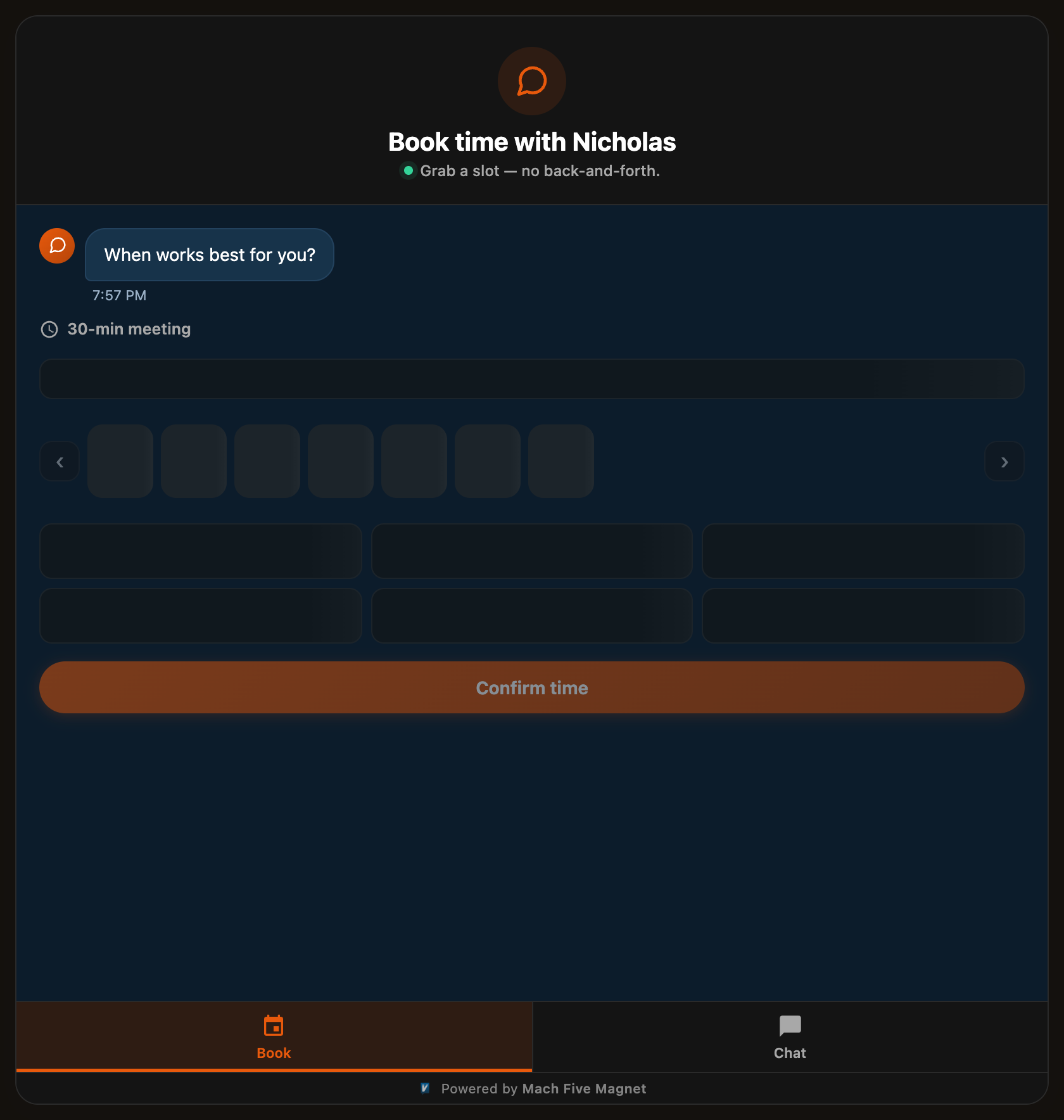 A visitor picks a real open time inside the magnet.
Set Up
Open the app and go to Settings, then Integrations, then Microsoft Bookings. Then:
- Click Connect and sign in with your Microsoft 365 work account.
- Approve in-magnet booking on the Microsoft screen that follows. One-time, one click for a Microsoft 365 admin. It lets visitors book inside the magnet instead of on your Microsoft page.
- Set any magnet Book button to a Bookings page, under Magnets.
- Bookings sync to your leads every few minutes. Click Sync now for an immediate sync.
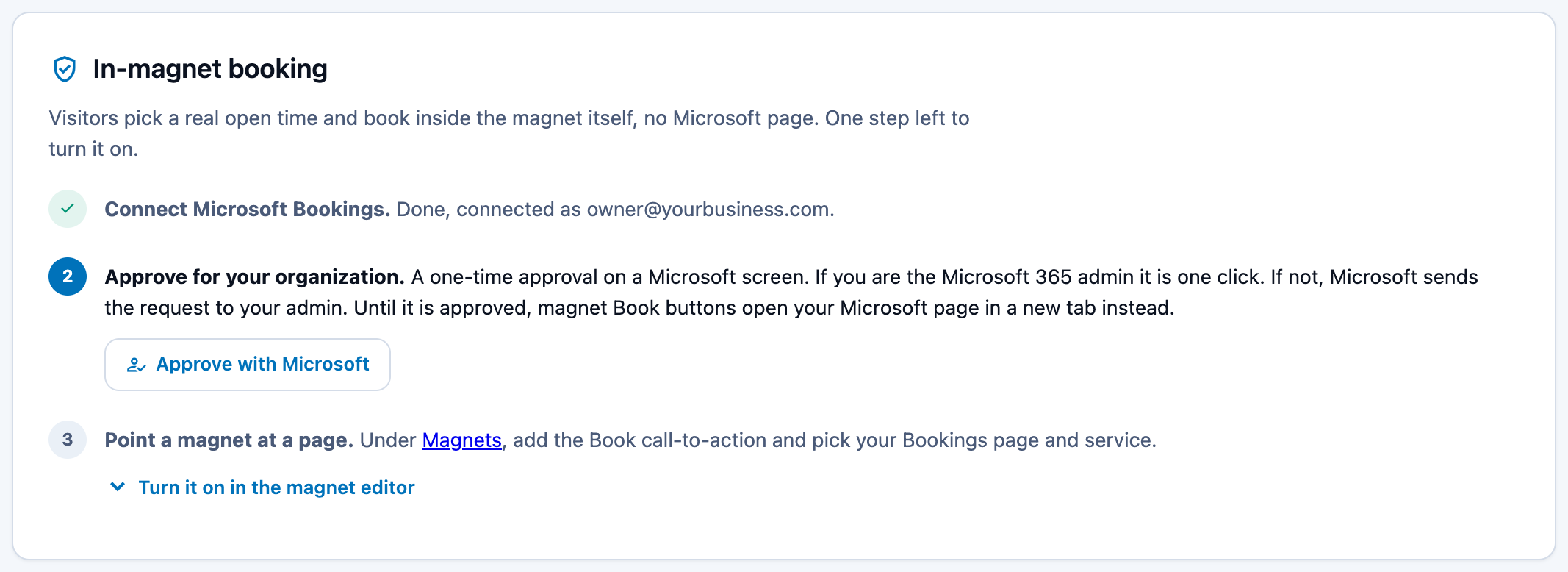 The integration page walks the setup, step by step.
Turn It On In The Magnet Editor
- Under Magnets, edit a magnet and open its Welcome and CTAs tab.
- In the Call-to-action bar, check Book.
- Set the Book source to Microsoft Bookings.
- Pick your Bookings page, then pick a service. A service gives visitors the in-magnet scheduler with your real open times. Whole page opens your Microsoft page inside the magnet instead.
- Save. Visitors who tap Book now pick a time and book without leaving the magnet, and the appointment lands on your Bookings calendar with a Teams link.
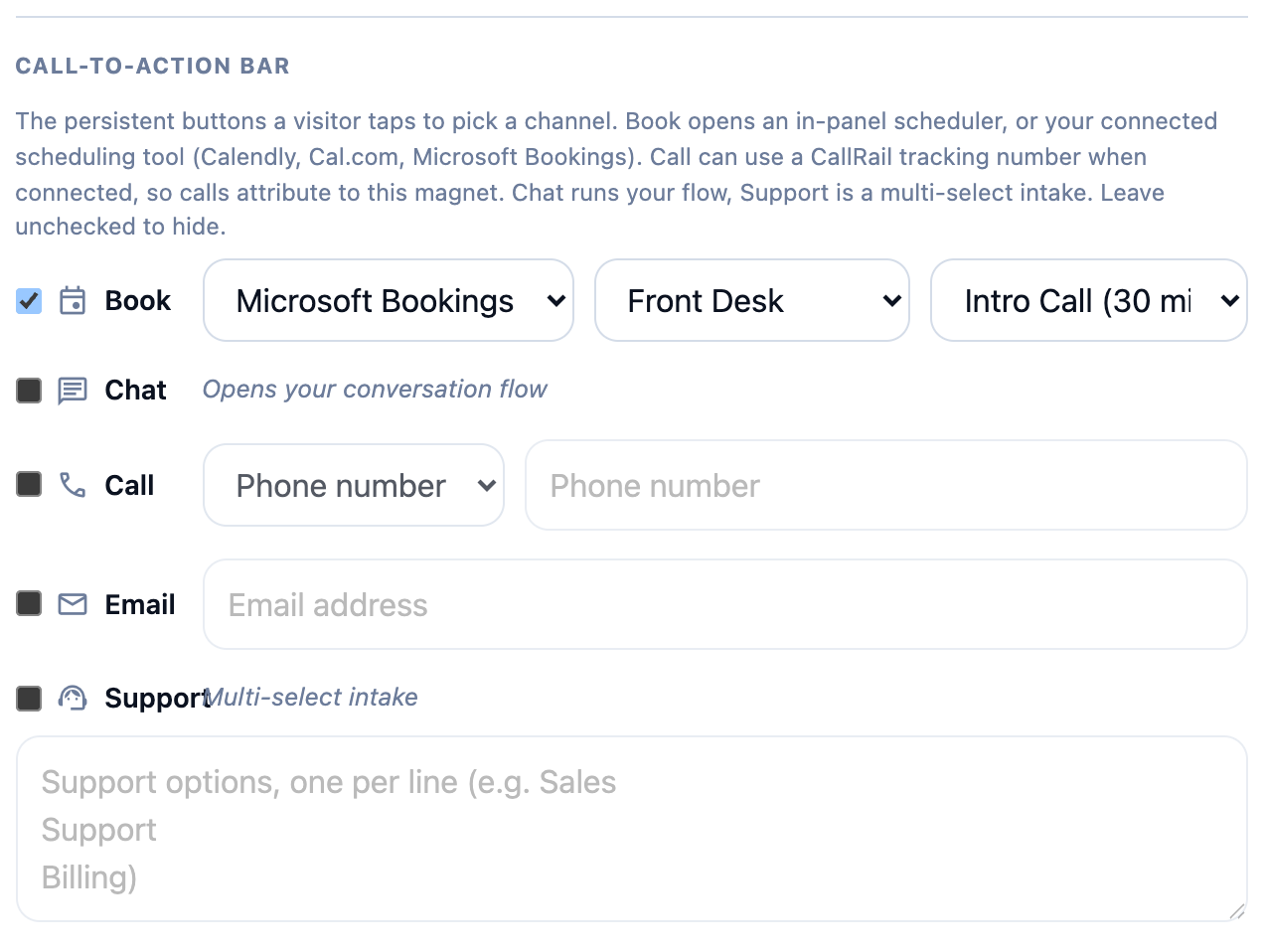 The Book call-to-action, set to a Bookings page and service.
What Syncs
Visitors pick a real open time and book inside the magnet, no Microsoft page. Each booking is added to the lead, with the Teams meeting link included.