
Shopify product guides
Connect your catalog, build a branded product finder, and bring shopping conversations into your Magnet workspace.
Help shoppers explore your products through a conversation. Magnet uses your connected catalog and the matching rules you configure to narrow product choices, then shows recommendations that link back to your store.
Plans and billing
- Already paying for Magnet Pro or Enterprise? Connect the eligible workspace that has your paid plan. Confirm its billing relationship during setup to use Shopify without purchasing a second subscription.
- Starting through Shopify? Pro is $49 USD per month, billed through Shopify after you approve the subscription. This includes access to the Magnet workspace, not just the embedded Shopify editor.
- Free Magnet accounts do not include Shopify integration.
- Enterprise is available to customers who sign up directly with Magnet. Shopify-origin workspaces use Shopify Pro and do not have an Enterprise upgrade option.
CRM sync, attribution and advertising reporting are included with Pro. See Magnet pricing.
Connect your store and workspace
- Open Mach Five Magnet in your Shopify admin after installing the app through an available installation link.
- Follow the account connection step and sign in to Magnet. Choose the workspace that should own this store and its guides. If you already pay for Magnet, select that existing workspace.
- Confirm the workspace and check plan eligibility. Existing paid access is verified; new Shopify subscriptions require your approval in Shopify.
- Select Connect & import catalog. Wait for the catalog to become ready before building your guide.
The integration reads your product catalog. Connecting does not rewrite your products or automatically publish a guide on your storefront. Each guide is tied to its selected store, so product matching stays within that catalog.
Build and customize your guide
Create a product guide from the connected store’s setup screen. Choose the products the guide should consider, then build questions around the choices your shoppers need help making.
For example, a lighting guide can ask about the room, product category and preferred style. Map answers to the catalog values shown in the editor. The guide uses these configured rules; it does not infer every product attribute from a description.
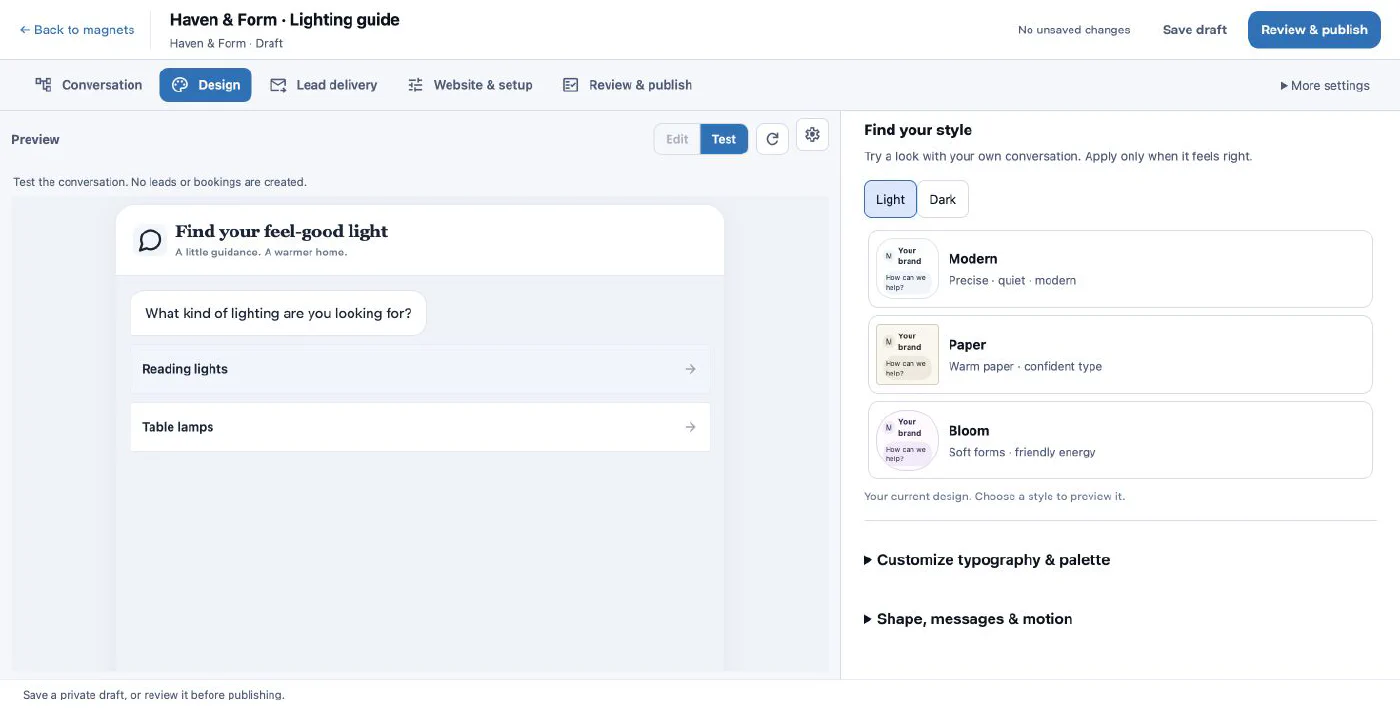
Use Design to select a theme and refine colors, typography, shapes and motion. Add your own welcome copy and branding, then use the preview to check the result.
Use Try a path to test combinations before publishing. Check a good match, several possible matches, and a path with no matching products. Adjust the question or matching rule when the result does not fit your intent.
Publish and place it in your theme
- Save your draft and complete Review & publish. Resolve any catalog or configuration issues the editor identifies.
- Return to the Shopify setup screen and assign the published guide to the store.
- Open the Shopify theme editor and add the Magnet product-guide app block where the inline conversation should appear. The location must support app blocks.
- Preview the theme on desktop and mobile. Check the full path from the opening question to a recommendation and its product-page link.
- Save the theme changes. If you edited a draft theme, publish it separately when you are ready for shoppers to see it.
The theme editor is a preview and does not send real inquiries. Test the published storefront separately. Product recommendations link to the product page; they do not place an order or complete checkout.
Use the rest of your Magnet workspace
Shopify connects the store and catalog to Magnet. Your workspace also lets you build magnets for other websites, work captured inquiries, review engagement and lead reports, and connect eligible business tools.
- HubSpot, Salesforce and Zoho CRM can receive captured inquiries and conversation context when connected.
- Google Ads and Google Analytics have their own connections and plan requirements.
- The embed guide explains how to place magnets on your other websites.
A recommendation alone is not a captured lead, a purchase or a CRM delivery. Reporting distinguishes activity from completed inquiries; integrations need to be connected and configured for the same workspace.
Catalog updates and troubleshooting
The catalog is still importing or unavailable. Check the store’s connection status and use Refresh catalog when offered. Guides need a healthy catalog; reconnect an expired connection before retrying publication.
The results are not what you expected. Recheck the guide’s store, product selection and answer mappings. Try the same path in the editor and confirm the relevant products are available in the connected catalog.
The guide does not appear on the storefront. Confirm that it is published, assigned and enabled, and that the app block was saved on the theme you are viewing. Check the store domain and your workspace’s paid access.
You see another subscription prompt despite already paying. Stop before approving a second subscription. Confirm you selected the correct paid workspace and completed the existing-account eligibility check. Contact us if the verified billing relationship is not recognized.
You disconnect or uninstall. Shopify-backed guide access stops. Reconnect the store and check catalog readiness and the guide assignment before using it again.